When Cell Towers Go Dark, Starlink Keeps You Connected
🔗
Affiliate disclosure: Some links on this page go to Amazon. If you buy something
through one of them, we earn a small commission — at no extra cost to you. It never changes the
price you pay, and it never decides what we recommend. As an Amazon Associate I earn from qualifying purchases.How we make money →
Cell towers go down in every disaster worth the name, and they go down for reasons that have nothing to do with you. Starlink does not use them. It talks to its own satellites, which are not standing in your county waiting for a tree to fall on them, and which do not care whether the power is on anywhere below. This is the whole of it, written for people in their fifties, sixties and seventies who would like to still be able to reach somebody.
The window to buy this is before the storm season begins — not during it. After a major storm is announced, Starlink hardware sells out. Installation appointments fill. The time to have satellite internet is the Tuesday in April when you have nothing else going on and the weather is fine.
And whatever you end up connecting with, the price on the advert is rarely the price on the bill — promotional rates expire, equipment rental never does, and long-standing customers routinely pay more than new ones. What you are actually paying, and how to cut it, is a page of its own.
This guide assumes you are an adult somewhere between 50 and 70, you have aging parents or are starting to think about your own independence, and you live in a place where hurricanes, ice storms, wildfires, or floods are a real possibility. If any of that is true, read this page before the next storm season starts.
📝 Why I Finally Bought One
I have lived in Florida since 1984 and been through around forty hurricane seasons on the Nature Coast. I put off buying Starlink for years. What finally did it was going weeks — not days, weeks — without service after a storm, and realizing that no amount of preparation on my property was going to bring a cell tower back up any faster.
What sold me was Standby Mode. When I signed up it was five dollars a month to keep the dish registered and ready. That was a no-brainer. It is ten dollars a month now, and I would still call it one of the easiest decisions on this entire site. Ten dollars is less than most people spend on a subscription they forgot they had.
If you live where hurricanes come ashore, you need one of these. Not because it is exciting technology. Because when the towers go down, the difference between having it and not having it is whether anyone can reach you. Read the warning below about the reactivation surcharge before you set yours to Standby — the rules changed in 2026 and I would rather you know now than find out during a storm. — Franklyn Galusha
🚨 A Real Account — Southwest Florida, 2022
Twelve Days Without a Signal — and One Family That Had One
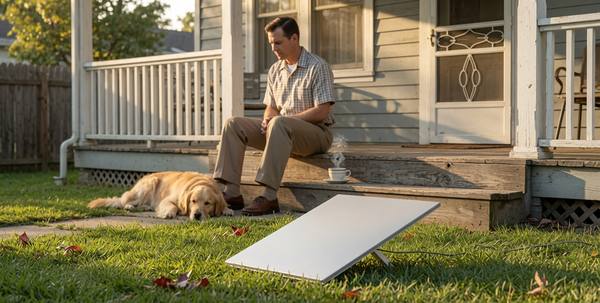
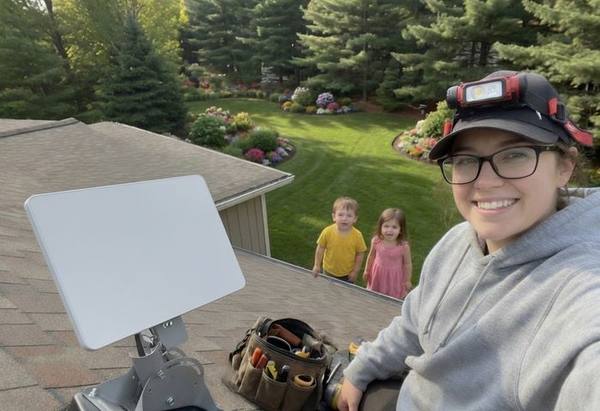
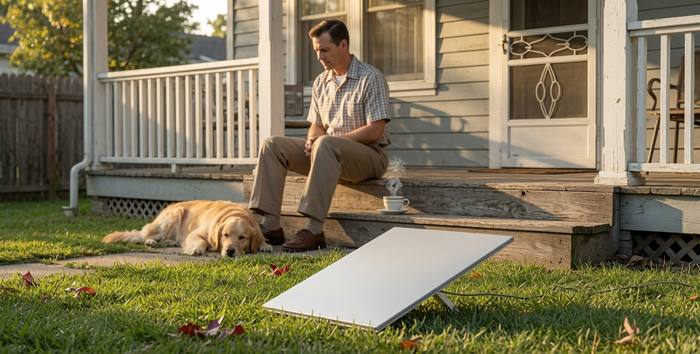
Illustration. There is nothing clever in this picture — a square dish staked in the front yard and a man having his coffee. Twelve days of that was the difference between checked-on and alone, in a storm where a great many of the deaths owed more to isolation than to wind or water.
When Hurricane Ian made landfall on September 28, 2022, it was the deadliest hurricane to strike Florida since 1935. The storm killed 149 people. Many of the deaths were not from wind or water alone. They were from isolation — seniors who could not call for help, could not reach family, could not summon paramedics because every cell tower in a 50-mile radius was either destroyed, flooded, or overwhelmed.
One retired couple in Cape Coral had installed Starlink six months earlier on the advice of their son, who lived in Texas. When Ian hit, their power went out with the rest of the neighborhood. They ran their Starlink dish on a portable battery station. For twelve days while neighbors had no communications at all, they had internet. They coordinated medication pickups for four neighbors who depended on insulin refrigeration.
They relayed welfare checks to six families whose out-of-state relatives could not reach them by phone. They tracked the FEMA distribution schedule and sent the information through neighborhood Facebook groups that only they could access. Their son said later: “That $500 dish did more good in those twelve days than anything else in the neighborhood.”
The cell towers came back online gradually, over eight to twelve days. Some areas waited three weeks. Landlines were worse. The couple’s Starlink signal dipped during the worst rain bands but never went fully dark.
✅ Lesson: Satellite internet operates independently of the infrastructure that fails in disasters. One Starlink terminal with battery power kept a neighborhood connected during a twelve-day communications blackout. The hardware cost less than one night in a hotel. The subscription cost less than a car insurance payment.
149
Deaths from Hurricane Ian, 2022 — many involving isolation from emergency services
12
Days some Southwest Florida areas had no cell service after Ian
70%
Of U.S. cell towers have less than 8 hours of backup power (FCC data)
6,000+
Starlink satellites in low-Earth orbit as of 2026
📵
Why Cell Towers Fail in Every Major Disaster
Understand what actually fails and the answer picks itself.
A cell tower looks like the most permanent object in the county. It is steel, it is bolted to a concrete pad, and it has stood there through every ordinary Tuesday of your life. So a man naturally assumes it will go on standing through an unusual one.
It will stand. That is not the same thing as working.
There are three separate ways a tower stops being any use to you, and they arrive in that order.
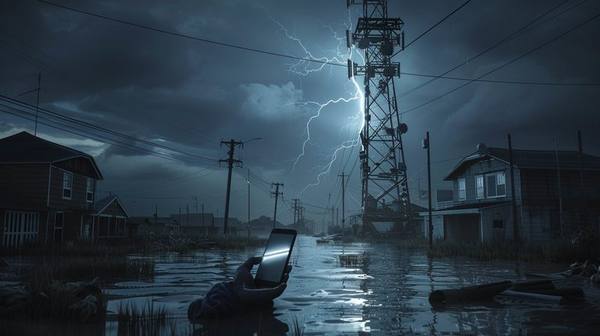
A phone with a full battery and no signal is a torch. The tower runs on the same electricity your house does — the FCC puts its batteries at four to eight hours, and the generator behind it, where there is one, only helps for as long as somebody can still get fuel to it.
First the power goes
A cell tower runs on the same electricity your house does. When that stops, it falls back on batteries, and the FCC puts those batteries at four to eight hours. Some towers have a generator behind them. A good many do not, and of the ones that do, plenty run dry inside a day or two because somebody has to drive fuel out to them on roads that are full of trees.
The grid can be down for weeks. The tower is finished long before the grid is.
Then the ones still standing get crowded
A tower with power and fuel can still be no good to you by lunchtime, and this is the part almost nobody expects.
Everybody in the county reaches for the telephone at the same moment. They are calling their daughters, calling 911, looking up where the shelter is, and telling the internet they are all right. A tower is built for an ordinary afternoon, not for every soul it covers wanting it at once.
So calls drop. A text takes three hours to go nowhere. The bars on your telephone say you have a signal, which is perfectly true and completely useless.
And some of them simply are not there any more
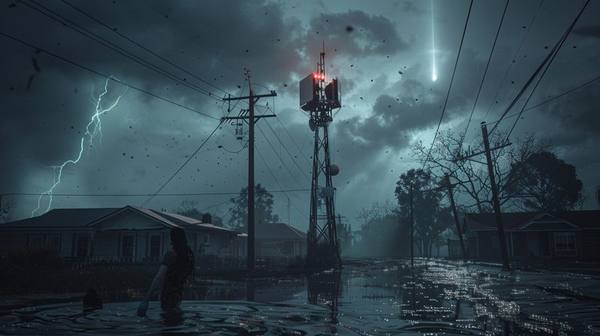
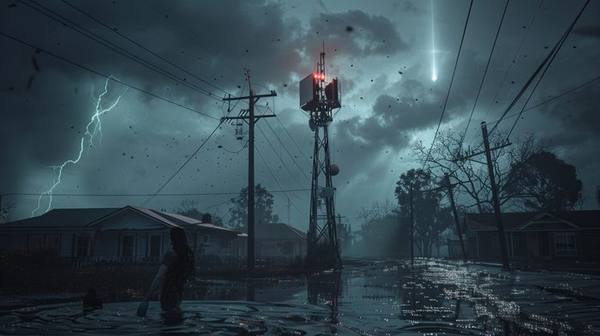
This is the third way it fails and much the plainest. Wind and water take the tower down, or take down the line that feeds it — which amounts to the same thing at your end, and neither one is mended by waiting it out.
The third way is the plainest. Wind, water and falling timber take the tower down, or take down the fiber line that connects it to the rest of the world, which amounts to the same thing.
In Ian, in Katrina and in Maria, whole counties lost every piece of it. Not the power to it. Not the crowding on it. The hardware itself, gone.
Here is the whole of why the dish is different, and it is one sentence: there is nothing of it in your county.
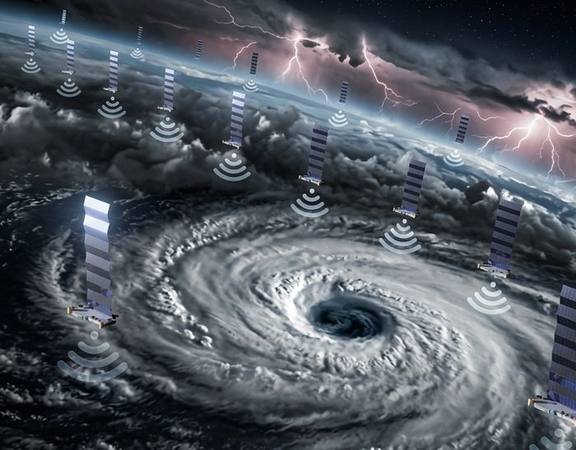
The signal comes from 342 miles up. Your dish talks to that, and to nothing else on the ground anywhere. No local grid, no local tower, no local fiber in a ditch beside a road that is under four feet of water.
The only equipment between you and space is a dish on your roof and a router on your table, and both of those will run off a battery you can carry in one hand.
🛰️
How Starlink Actually Works
The old satellite internet was slow for one particular reason, and this fixes that reason.
If you tried satellite internet years ago and hated it, your memory is not wrong. That service sat twenty-two thousand miles up and every click made the round trip; these sit a few hundred miles up, which is the whole of why the lag went away.
If you ever had satellite internet before, you have every right to be suspicious of this, and I am not going to tell you your memory is wrong. It was slow. It was laggy. You could not hold a conversation on it. It cost a great deal for very little.
All of that was true, and all of it came from one single fact, which has now changed.
The old way, and the one reason it was bad
The old services put a few enormous satellites 22,000 miles up. Out there a satellite sits still over one spot on the earth, which is convenient for the company and terrible for you.
Every scrap of what you do has to go 22,000 miles up and 22,000 miles back. Even traveling at the speed of light, that round trip takes about six hundred milliseconds — better than half a second, every time, no matter what you are doing.
Half a second does not sound like much until you try to talk to somebody through it. It is the delay that has two people talking over each other and neither one able to stop. And an ordinary web page is not one trip; it is dozens of them, stacked end to end, which is why the thing crawled.
The new way, which changes the one thing that mattered
Starlink put its satellites at 342 miles instead — about sixty-four times closer.
That is the entire invention. The round trip falls to 20 to 40 milliseconds, which is what a cable line does, and at that speed a telephone call sounds like a telephone call.
The price of flying that low is that a satellite will not stay put over your house; it comes over the horizon and it goes out the other side a few minutes later. So instead of a few big ones they had to fly an enormous number of small ones — past ten thousand of them now — so that whenever one leaves, the next is already up there waiting. Your dish hands off between them and never mentions it to you.
Milliseconds latency — comparable to cable internet
342
Miles altitude — 64x closer than old satellite internet
Honest about weather
Now the honest part, and I would rather you heard it here than found it out in August.
Heavy rain degrades the signal. The trade calls it rain fade. In the worst bands of a hurricane, expect it to weaken and expect it to drop out altogether for a bit. It generally comes back inside seconds to a few minutes, as the band moves through.
That is a real limitation and I will not pretend otherwise. What I will say is when it matters least: the gaps between the bands, and the hours after the storm has gone through, are exactly when it works — and those are exactly the hours you want to reach somebody and find out what happened to everybody else.
💰
Plans Compared — and Why Standby Mode Changes Everything
There is one plan that suits nearly everybody living where the weather misbehaves.
⚠️ The one rule that decides everything on this page — and it has moved four times this year.
Standby Mode is only for people who own their dish. Rent the hardware from Starlink and you cannot pause at all. That is the whole ballgame here, because the storm-prep strategy below is built on Standby Mode.
And Starlink has spent this year making ownership harder to come by. In June it stopped letting new Residential customers buy the kit at all and put everybody on a rental with a $10 monthly fee attached. On 1 July it pulled the Standard dish from outright purchase on Roam as well. Then about a week ago it dropped the $10 rental fee again. And on 28 July the Standard dish came back to Roam.
That is four reversals in seven weeks, and I am not going to pretend I can tell you what the checkout page will say on the morning you open it.
What I can tell you is the one question to ask it. Go to starlink.com, put in your own address, and find out whether you are offered the chance to buy the hardware or only to rent it. That single answer decides whether any of this page is available to you.
If you are offered a purchase, take it. Around $349 for a Standard kit, and it is yours, and Standby Mode comes with it. If you are only offered a rental, there are still two ways to own one — both are in the next section.
Anyone who already owns their dish is unaffected. Existing owners keep Standby Mode.
📅 Every price on this page is a snapshot, not a promise.
The figures below are what Starlink charged in July 2026. This company has changed its pricing, its plan lineup, or its terms at least nine separate times in 2026 alone — twice in the last ten days — usually without announcing it. A number that was accurate the day we wrote it can be wrong by the time you read it.
So use these as a shape, not a quote: what the cheap tier roughly costs, what the top tier roughly costs, what a dish runs. Then check starlink.com with your own address before you spend a dollar. Your address is the only place the real number lives — two houses on the same street can be quoted differently.
Most Common Choice
Residential
$55–$130 / month
Sold in tiers by speed — roughly $55, $85 and $130 as of July 2026. A $10 monthly hardware fee was added for renters in June and withdrawn again in July, so check what your own address is quoted. No contracts, cancel anytime.
Best for Storm Prep
Standby Mode
$10 / month
Owners only — not available if you rent the dish. Pauses full service but keeps a live ~500 Kbps link for texts, email, and Wi-Fi Calling. Reactivate within hours. Check your address for a demand surcharge first.
Roam
From $55 / month
Use Starlink anywhere — home, RV, campsite. Tiered by data: roughly $55 for 100GB, $80 for 300GB, and about $175 for unlimited. Every one of those rose in June 2026 — check starlink.com.
Priority (Business)
$250+ / month
Guaranteed speeds, prioritized during congestion. For home-based businesses where downtime costs money.
Two Ways to Own the Dish When Starlink Will Not Sell You One
If your address is offered a rental and nothing else, you are not finished. You are just not buying it from Starlink.
The first way is an ordinary shop. Best Buy, Home Depot, Walmart and Amazon have all sold Standard kits in a box. You buy the box, you own what is in it, and you enter its device number at checkout when you set up service. Nothing about that route depends on what Starlink’s own order page is doing this week.
The second way is to buy a used one — and here this site’s usual advice applies, with one condition attached that is not optional.
Starlink hardware is transferable from one owner to another, which is unusual and very much to their credit. Plenty of dishes come up secondhand from people who moved somewhere with fiber. But a used dish is only worth money if it is genuinely free to transfer, and you cannot tell that by looking at it. It looks exactly the same either way.
🔎 Before any money changes hands, on a used dish:
Get the Kit Serial Number from the seller and check it yourself at starlink.com/activate. If it comes back as already assigned, that kit is still tied to somebody’s account and it is no good to you. This is the whole check, it takes a minute, and it is the one step people skip.
The seller has to cancel their service and release the dish from their account. Until they have actually done that, it is not yours in any sense that matters.
A kit cannot be transferred at all within roughly 90 days of first activation, or 120 days of purchase, whichever comes first. A recently bought dish may simply be locked, and no amount of goodwill from the seller changes it.
An unpaid balance on the seller’s account will block the release. That is not something they are likely to volunteer.
Check your own address for capacity before you buy anything at all. A dish you own outright is no use to you in an area that will not accept a new activation.
Treat that serial number the way you would treat the title on a truck. You do not hand over the money before you have seen it and checked it, and anybody who will not let you check it has told you something.
That is more homework than buying an internet connection ought to require, and I am not going to dress it up as anything else. Starlink is still the best answer I know for keeping a telephone working when the towers are down. It is also a company that changes the deal about once a month and does not write to tell you it has done it.
What It Actually Cost — One Real Order, July 2026
Numbers in the abstract are easy to argue with. Here is an actual Starlink order priced out at a real address on Florida’s Nature Coast in July 2026, for a family member setting one up about a mile from where this site is written. Nothing here is estimated.
📍 Crystal River, Florida — a congested service area
Standard 4X kit, bought outright at a home-improvement store
$349
Demand surcharge — one-time, to switch service on at that address
$500
First month of service, cheapest tier
$55
Roof or pole mount — the kit ships with a ground kickstand only
$30–$95
To be online the first month
~$935
Then it drops hard. Once she owns the dish and has paid the surcharge once, keeping satellite internet standing by costs $10 a month — and reactivating before a storm never triggers that surcharge again, because Standby preserves a surcharge you have already paid.
The trap she nearly walked into: Starlink’s own checkout offered her a dish for nothing up front — $0 hardware, $10 a month rental. It looked like the cheaper road. But rented dishes cannot use Standby Mode. She would have paid full price twelve months a year, forever, for a dish that was never hers. Buying the kit for $349 is the only thing that makes the $10-a-month plan possible.
And your number will not be $935. The demand surcharge is charged only in congested areas. In much of the country it is smaller or does not exist at all — some addresses are offered free hardware instead. Ten miles inland, the same order can price out completely differently. Run your own address before you buy anything.
Standby Mode — The Strategy That Makes Starlink Affordable for Most Seniors
Two taps on a telephone. That is the whole of Standby Mode — the dish waits on the roof through the quiet nine months for a few dollars, and you wake it up in the week you can see something coming.The light is the generator. The connection is the dish. They are two separate purchases and people routinely make only the first — a house with power and no way to reach anybody is half-prepared, and it is the more expensive half that got bought.
If you do not need full-time satellite internet — if you already have cable or fiber that works fine nine months of the year — Standby Mode is the answer.
Here is how the math works. You get hold of the hardware outright — roughly $349 new, less secondhand — because owning it is the thing that makes Standby Mode possible. A rented dish cannot be put on Standby at all, whatever the rental happens to cost that month. You activate service and set up the dish. You use it for a month or two to verify everything works. Then you switch to Standby Mode: $10 per month.
When a hurricane forms in the Gulf and your cable company’s infrastructure looks vulnerable, you log into your Starlink app or account and reactivate full service. Reactivation typically takes a few hours. You are back to full service before the storm arrives. When the storm passes and your cable is restored, you go back to Standby Mode.
Annual cost in Standby Mode: $120/year to keep Starlink ready. That is $10 per month. Less than one tank of gas. For that cost, you have emergency satellite internet available any time a storm threatens — on a few hours’ notice — for the life of the hardware.
The one thing to watch: Reactivation is not instant. During a major storm surge event with rapid track changes, you may have less warning than you think. The safest approach is to reactivate as soon as the storm enters the Gulf of Mexico — not when it is 48 hours from landfall. Reactivating five days early costs you about $20 extra. Worth it.
⚠️ Read this before you rely on Standby Mode — the rules changed in 2026.
Standby Mode used to guarantee that you could return to full Residential service without paying Starlink's one-time “demand surcharge,” the congestion fee charged in areas where the network is already crowded. In April 2026 Starlink quietly removed that protection. The current policy says Standby Mode does not waive a demand surcharge — it only preserves the surcharge you have already paid at that address. If no surcharge has ever been paid for your location and your area is congested, one may be charged when you reactivate.
Customers have reported bills of up to $1,500 simply to resume service they had paused. The change was made without an announcement.
What to do about it: before you put a dish on Standby — and again before storm season — check your own service address on Starlink's website and see whether a demand surcharge currently applies there. If one does, understand that reactivating in an emergency could cost far more than the $120 the plan implies. If it does not, know that Starlink is not obligated to warn you before that changes. For most of Florida's Nature Coast this has not been an issue, but it is worth checking your own address rather than assuming.
The good news, and it is real: Standby Mode is not a dead connection. It keeps a live, throttled link of roughly 500 Kbps — about old 2G speed. That is too slow for video, but fast enough for text messages, email, and Wi-Fi Calling. In other words, even sitting on the $10 plan, a powered dish can still get a call out when the towers are down.
📞
The Setting Most People Don’t Know About: Wi-Fi Calling
Your telephone behaves precisely as it always has. You will not notice a thing, which is the point.
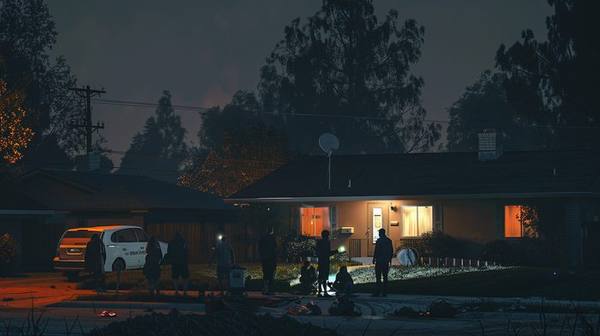
She is on an ordinary call, on her own number, with no cell service anywhere in the county. Wi-Fi Calling is a setting already sitting in the phone in your pocket — it costs nothing, and it is the thing that turns a dish on the roof into a telephone.
Here is the part of this that almost nobody explains, and it is the part that turns a dish on the roof into a telephone that works.
You do not need an app. You do not need a second number. You do not need to buy one further thing. You turn on a setting your telephone has had all along, and then your telephone makes calls over the dish instead of over a tower.
It is called Wi-Fi Calling and it has been built into practically every handset sold in the last eight years — iPhone, Android, Samsung, the lot. It is one switch, buried three menus deep, which is presumably why so few people know it is there.
Turn it on and the telephone quietly starts using whatever Wi-Fi it can find. Same handset, same number, same everything.
✅ How to turn it on right now — before you need it:
Android / Samsung: Settings → Connections → Mobile Networks → Wi-Fi Calling → toggle On. (Menu names vary slightly by carrier and phone model.)
Do it today, while nothing whatever is wrong. Then ring somebody over Wi-Fi and listen.
You will not hear any difference at all. That is the whole point of it — the technology that saves you in August is the one that behaved exactly like normal in March.
So when the towers go and your dish is up, the telephone finds the Starlink signal and carries on. You ring 911. You ring your daughter. You ring the doctor. The handset does not announce anything and does not ask you to do anything, because as far as it is concerned nothing has happened.
And it works in the other direction too. The hour the towers come back, the telephone goes back to them on its own. Most people never notice either switch.
1
Setting to change on your phone. That’s it. Wi-Fi Calling is already built in.
911
Works over Wi-Fi Calling. Your location is registered to your home address with your carrier.
0
Extra cost. Wi-Fi Calling uses your existing plan minutes. No new subscription needed.
⚠️ One thing to know about 911 and Wi-Fi Calling: When you call 911 over Wi-Fi Calling, your carrier sends your registered home address to the dispatcher — not your GPS location. If you are calling from somewhere other than your registered address, tell the dispatcher your actual location immediately. This is standard behavior for all Wi-Fi Calling, not specific to Starlink.
Put together: a dish, a battery, and one setting nobody told you about. That is a household that can still make a telephone call on the fourth day, on a street where nobody else can.
Other People's Phones Can Use It Too — Starlink as a Wi-Fi Hotspot
Everything so far has been about your own telephone. Now the part that reaches past your own front door.
The Starlink router is an ordinary Wi-Fi router. It does not know or care whose telephone is asking. Anyone in range can join it the same way they would join the Wi-Fi in a coffee shop — and they do not have to be a Starlink customer, do not have to install anything, and do not need one bar of signal from their own carrier.
This matters more than it sounds like. A neighbor, a family member visiting, or someone who has evacuated to your home does not need to be a Starlink customer, does not need to install anything, and does not need their own cell carrier to have any working signal. They just need your Wi-Fi password and a phone, tablet, or laptop with Wi-Fi turned on.
📶 Anyone can join your Wi-Fi — like any home network
Starlink's router broadcasts a standard Wi-Fi network with a name and password you set during installation. Any phone, tablet, or laptop with Wi-Fi can connect to it the same way it connects to your home network today. No Starlink account needed on their end. No app to download.
📱 Their Wi-Fi Calling works too — if they have it
If a neighbor or visiting family member also has Wi-Fi Calling enabled on their own phone, they get the same benefit you do: their phone can call and text over your Starlink connection using their own number, the same as if they were on cellular.
💬 Apps that don't need Wi-Fi Calling still work fine
Even without Wi-Fi Calling turned on, anyone connected to your Starlink can use WhatsApp, FaceTime, Messenger, email, and any app that works over internet rather than the cell network. For many people, this alone covers everything they need to reach family.
📶 Signal range reaches outside your walls
A typical Starlink router reaches 150–200 feet in open air — far enough that neighbors can often connect from their own driveway or porch without ever coming inside your home. Share the password and let people use it from a safe distance if that matters to you.
✅ This is exactly what happened after Hurricane Ian. The Cape Coral couple from the story above did not set out to run a neighborhood hotspot — they just had Starlink running and shared the Wi-Fi password. Neighbors without any working cell service connected from their own phones and called family, checked news, and looked up shelter information using a connection that was not theirs and required nothing from them except a password.
If you want more control, most Starlink routers let you set up a separate guest network through the Starlink app — same internet connection, but isolated from your own devices for privacy and security. This takes about two minutes to configure and is worth doing if you plan to share access with people outside your household regularly.
🔧
What You Need to Set It Up
It sounds harder than it is. Most people are online inside half an hour, and nobody comes to the house.
No appointment, no window between eight and noon, and no man in a van — the box is the installation. The roof is the one part of it worth handing to somebody else; the dish does not care, and works just as well on a pole, a rail or a stand in the yard, so long as it can see open sky.
Nobody comes to the house. There is no appointment, no window between eight and noon, and no man in a van.
What it wants is a clear piece of sky, about two hours, and one cable run from wherever the dish sits to wherever the router sits. That is the whole of it. The dish aims itself — you do not point it at anything.
What comes in the box
📡 The Dish (Starlink calls it “Dishy”)
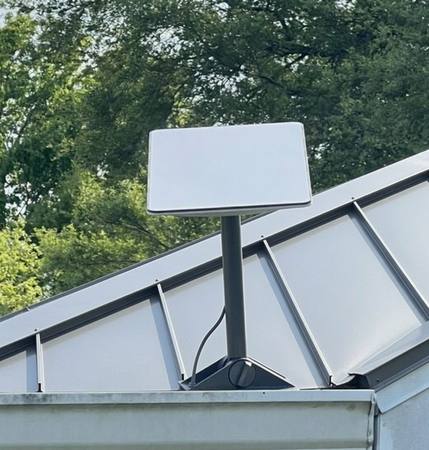
A flat rectangular antenna about 20 inches wide. It self-levels and points itself at the satellites automatically. No manual aiming required — you just need to place it where it has a clear view of the sky.
📶 The Wi-Fi Router
Included in the kit. Broadcasts a Wi-Fi 6 signal inside your home. Strong enough for a typical house. Connects to the dish via a single proprietary cable. If you want to use your own router, Starlink sells an ethernet adapter separately.
🔌 The Power Cable
The router plugs into standard 120V wall power. That’s it. The dish is powered through the single cable that runs to the router — no separate power line needed at the dish location. This makes it much easier to install on a roof or high mount.
📱 The Starlink App
Required for initial setup and for the obstruction checker tool (more on that below). Download it before your hardware arrives. The app walks you through every step of setup and shows you a map of any obstructions that might block your signal.
The one requirement that matters: clear sky
If there is one thing on this page to get right before you spend a penny, it is this one.
The satellites come up over the horizon and sweep across, so the dish needs a good wide piece of open sky rather than a narrow gap. And in this country it is looking NORTH — which catches people out, because the old satellite dishes all pointed south and there is very often an old bracket still up there pointing the wrong way.
Trees block it. So do roof overhangs, chimneys and the neighbor’s house.
You do not have to guess at any of this. The Starlink app has an obstruction checker: you stand in the yard, point the telephone at the sky, and it tells you what percentage is blocked from that exact spot. Walk around and try four or five places. It takes ten minutes and it is the single most useful thing you can do before ordering — because the one problem no amount of money fixes afterwards is a tree.
✅ What does NOT work with Starlink: Coaxial cable (the round black cable your cable TV uses). Old satellite dish locations (usually aimed south — wrong direction). Existing cable modem or router setups (Starlink has its own router). Apartment balconies often have too many obstructions. Check the app first.
Setup steps
1
Use the app obstruction checker to find the right location
Do this before you order. Open the Starlink app, tap the obstruction tool, and walk your property. Find the spot with the clearest sky. Ground-level works fine if you have a clear yard.
2
Order the hardware and wait for delivery
Order at starlink.com. Delivery is typically one to two weeks. In high-demand areas, there can be waitlists — another reason to order before storm season.
3
Mount the dish at your chosen location
The kit includes a basic ground stake for yard mounting. For roof or pole mounting, purchase a compatible mount separately (covered in the Products section). Point the dish toward open sky — it does the rest automatically.
4
Run the cable from the dish to the router location
One cable carries both power and data. Route it through a window, under a door, or drill a small hole through an exterior wall with a rubber grommet. Keep it away from sharp edges that could damage the cable.
5
Plug in the router and follow the app setup
The app guides you through network naming, password setup, and the first satellite acquisition. Most systems get their first signal within 10 minutes of being powered on.
6
Run a speed test and verify signal quality
The app shows real-time signal quality and any obstructions causing issues. If speeds are low, try adjusting the dish position slightly. You are looking for 50 Mbps or better for solid performance.
⚡
Powering Starlink During a Blackout
The section that matters most. Internet you cannot power is a dish sitting on the lawn.
This is the section that decides whether any of the rest of it was worth the money.
Starlink is about as thrifty with electricity as internet gets. That is the good news and it is genuinely good. The bad news is that thrifty is not the same as none, and a dish with no power in it is an expensive dinner plate sitting on your lawn.
"I will work that out when it happens" is not a plan. It is a sentence people say in June.
Scenario
Starlink Power Draw
What Powers It
Normal operation
50–75 watts
Wall outlet, generator, battery station
Startup / boot
Up to 100 watts (brief)
Any of the above — only lasts 1–2 minutes
Dish heating (cold weather)
Up to 100 watts
Not relevant for Florida; matters in northern states
Standby / idle
20–30 watts
Very small battery or solar can maintain this
Dish and router together draw less than a hundred watts. That is a load a battery box carries all night without noticing — and a two-thousand-watt inverter generator will run it alongside the refrigerator and the lights with room left over.
Option 1: Your generator (easiest if you already have one)
Anything over a thousand watts runs it without noticing. A 2,000-watt inverter generator — the quiet sort — will carry Starlink, the refrigerator and the lights together and still have room left over.
Put plainly: on a generator big enough to be worth owning, the dish costs you about what a light bulb costs you. It is the cheapest thing on the list and the one you will be gladdest of.
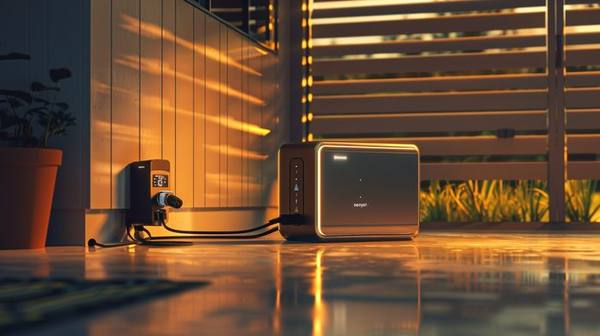
Option 2: Portable battery station (most flexible)
A 1,000 to 2,000 Wh battery station — EcoFlow, Jackery, Goal Zero — runs the dish for somewhere between twelve and thirty hours on one charge, depending which one you bought.
They fill up from the wall when the grid is behaving, from your car, or from a solar panel. And that last one is the arrangement worth understanding, because a 1,500 Wh station and a 200-watt panel, in Florida sun, will run Starlink for as long as the sun keeps coming up. Not for a day. Indefinitely.
A propane or natural gas standby unit starts itself within seconds of the power going and runs the house, dish and all. It is the most expensive answer here and the only one that asks nothing of you at two in the morning.
If you have one of these, there is no power planning to do for Starlink at all. It simply never notices anything happened.
⚡ The math for a 1,500 Wh battery station: Starlink draws 65 watts average. 1,500 Wh ɇ 65W = approximately 23 hours of runtime. Add a 200W solar panel in Florida sun and you are generating 800–1,200 Wh per day — more than enough to run Starlink continuously while also charging phones and running small fans.
🚨 Important: Starlink uses a standard 120V plug. It works with any UPS (uninterruptible power supply), any inverter generator with a clean sine wave output, and any battery station with AC output. Make sure your battery station output is rated for 120V AC with pure sine wave — most quality units are.
🏠
Mounting Options — Where to Put the Dish
Where you put it matters a great deal more than what you bolt it to.
The kit arrives with a little stake for standing the dish on the ground, and that stake is meant for finding out whether the thing works before you go climbing on anything. It is not a mount. Here is what you actually want.
Easiest
Ground Mount / Yard Stake
If you have a clear view of the sky from your yard, a ground-level installation works well and requires no roof access. The included stake works for testing. A permanent ground mount screwed into a concrete pad or secured to a fence post is the easiest permanent solution. Best for: single-story homes with open yards, renters who cannot modify the building.
Watch for: lawnmower clearance, cable routing from yard to home, potential cable damage from foot traffic.
Best Signal
Roof Mount
Mounting on the roof gives maximum sky clearance and eliminates obstructions from trees and buildings. A J-pole or pipe adapter mount screws into the roof fascia or sits on the peak. Requires comfort with ladders and basic roof work — or hiring a handyman. This is the best permanent solution for most homes.
Watch for: waterproofing the cable penetration through the roof, proper securing for hurricane-force winds, comfort with heights.
Good Compromise
Wall or Fascia Mount
A pipe or J-pole bracket screwed into the exterior wall or fascia board gets the dish elevated without full roof access. Easier than a roof mount, better elevation than a ground mount. Good for two-story homes where even the eave is high enough to clear nearby trees.
Watch for: making sure the mount is into studs or use appropriate anchors, cable routing through the wall.
Portable
RV / Portable Mount
If you have a Starlink Roam plan, the dish can go anywhere. A portable tripod mount lets you set up the dish in different locations — in your yard after a storm, at a family member’s home, or at your RV campsite. Excellent for people who want flexibility without permanent installation.
Starlink Roam plan required for mobile use outside your service address.
Hurricane preparation tip: Consider what happens to a roof-mounted dish during a direct hurricane hit. The dish is rated for winds up to 100+ mph, but it is a surface area that catches wind. Some homeowners in the direct path of a major storm choose to temporarily dismount the dish and bring it inside, then remount after the storm. For Category 3 and below, most dishes survive on the roof without issue.
🛍️
What to Buy — Complete Product List
The kit, the power to run it, and an honest word about each one.
📋 A word before the list. What follows is a catalogue and it reads like one — part numbers, prices, what is in the box and what is not. I am not going to be entertaining about an ethernet adapter, and you would not thank me if I tried.
Read it once with a pencil, work out which of these your own house actually needs, and then we can go back to talking like people.
Start Here
Starlink Standard Kit (Dish + Router)
The core hardware. Includes the dish, Wi-Fi 6 router, power cable, and basic ground stake. Everything you need to get online. Order at starlink.com, or buy a Standard kit from a retailer such as Best Buy, Walmart, or Home Depot. Buy it, do not rent it. Starlink’s default for new Residential customers is now a $10/month hardware rental — and rented dishes cannot use Standby Mode, the whole basis of the storm-prep plan on this page. Purchase price is roughly $349; if you have already been given a rental, you can open a support ticket and buy the kit outright.
In the box: Starlink dish (“Dishy”), Wi-Fi 6 router, 75-foot proprietary cable (connects dish to router), power supply (inside the router, no separate brick), basic ground stake for temporary use, and a quick-start card pointing you to the app.
What you need separately: A mount appropriate for your location (ground, roof, or wall — see below). An ethernet adapter if you want to use your own router ($25 from Starlink). A longer cable if 75 feet is not enough ($30–$60 from Starlink for 150-foot version).
What to know before ordering: Use the Starlink app obstruction checker first. Make sure you have a qualifying address — Starlink coverage is excellent across the continental U.S. but check your address at starlink.com. Delivery is typically one to two weeks but can vary.
Renters, Travelers & Emergency Kits
Starlink Mini — The Portable, No-Mount Option
A compact, square dish about the size of a laptop with the router built directly into the unit — no separate box, no permanent mount required. Set it on the ground, a table, or the included kickstand, plug it into any standard outlet or a small battery pack, and it finds satellites in minutes. This is the version built for people who cannot or do not want to install a roof-mounted system: renters, condo and apartment dwellers, RV owners, and anyone who wants a grab-and-go internet connection they can throw in a car for an evacuation. Purchased outright for roughly $499. Owning it matters: rented hardware cannot use Standby Mode.
No roof, no bracket, no bolts through anything. It stands on its own feet on a balcony, a patio or a porch step — which is the answer for renters, condominiums and streets with an HOA. The mounting was always the obstacle; the service never was.
You do not own the roof? You do not need to. Most seniors who rent their home, live in a condo, or live in a community with HOA restrictions cannot install a permanent roof-mounted Starlink dish. The Mini eliminates that problem entirely. It sits on its own kickstand on a balcony, a patio, a porch step, or a strip of yard — no drilling, no permanent mount, no HOA approval needed in most cases. Move it when you move. Take it with you when you travel.
Built for evacuation, not just storms at home. If you ever have to evacuate ahead of a hurricane — to a hotel, a family member's home out of state, or an RV campsite — the Mini fits in a suitcase or a single tote bag. You arrive at your evacuation destination, set the dish down, plug it in, and you have internet again within minutes — independent of whatever Wi-Fi situation exists wherever you land. This is the version that travels with you, not the version bolted to a house you may need to leave.
Setup is genuinely simple — this is the easiest version to use. There is no obstruction checker walk-around required the way there is for a permanent install, no decision about roof versus ground versus wall mount. Unfold the built-in kickstand, set the dish anywhere with a reasonably open view of the sky, plug it into a wall outlet or a portable battery, and open the Starlink app. It typically connects within five minutes. For a senior who finds the idea of "installing satellite internet" intimidating, the Mini removes nearly every barrier — there is no decision to make about mounting, no cable routing through a wall, no ladder.
Power draw is tiny. The Mini uses roughly 20–40 watts — less than half the Standard kit — because the router is built in and there is no separate box drawing power. A small 300Wh battery pack, the kind many people already own for charging phones and laptops, can run the Mini for 8–12 hours. This makes it an exceptional emergency kit item: light, low power, and ready in minutes.
The trade-off: The Mini has a smaller antenna than the Standard kit, so peak speeds are somewhat lower — typically 50–150 Mbps versus 100+ Mbps on Standard — and it is slightly more sensitive to obstructions. For most single-person or two-person households doing email, video calls, browsing, and streaming, this is more than sufficient. If you want maximum speed for a full household working from home, the Standard kit is still the better choice. But as a renter's primary option, a traveler's companion, or a backup unit in an emergency kit, the Mini is the one most seniors should seriously consider — especially as a second unit alongside a Standard kit already mounted at home.
Starlink Pipe Adapter Mount
Attaches the dish to any standard 1.5” or 2” pipe or pole. Use it to mount on a fence post, a dedicated pipe in the yard, or a roof bracket. Sturdy and simple. This is the most common mounting upgrade from the basic stake.
The pipe adapter simply clamps onto the dish arm and slides onto a pipe. The dish then self-levels and aims automatically — you do not need to get the angle exactly right.
For yard mounting: Sink a 1.5” galvanized conduit pipe 18 inches into the ground and fill the hole with concrete. Let cure 24 hours. Slide on the pipe adapter and you have a solid, permanent ground mount that will survive hurricane-force winds.
For roof mounting: Use a J-pole or chimney bracket (sold separately) to create the mount point, then attach the pipe adapter. Make sure any roof penetrations are properly waterproofed.
Power Backup
EcoFlow DELTA 2 (1,024 Wh Battery Station)
The most popular portable battery station for Starlink backup. At 1,024 Wh, it runs Starlink for approximately 14–18 hours on a single charge. Recharges in 80 minutes from a wall outlet (fastest in class), from solar panels, or from your car. Quiet — no generator noise. Pure sine wave AC output for clean power.
Runtime with Starlink only (65W average): Approximately 14–18 hours.
Runtime with Starlink + refrigerator (150W combined): Approximately 6–8 hours.
With a 220W solar panel in Florida sun: Generates 800–1,000 Wh per day — sufficient to run Starlink continuously with power to spare for phone charging and lighting.
Weight: 27 pounds. Portable but not lightweight. Has a handle and rolls on a flat surface. For seniors, consider the carrying distance before placing it permanently.
Outputs: Six 120V AC outlets, four USB-A, two USB-C (100W each), one 12V DC car outlet. Run Starlink from one outlet while charging phones and running a fan from others.
LFP (lithium iron phosphate) battery: The DELTA 2 uses LFP chemistry, which lasts 3,000+ charge cycles (versus 500–800 for older lithium-ion). EcoFlow rates it at 10 years of life with normal use.
Power Backup
Jackery Explorer 2000 Pro (2,160 Wh Battery Station)
Larger capacity than the EcoFlow DELTA 2 — over 30 hours of Starlink runtime alone. Good choice if you want to run Starlink plus a CPAP machine plus phone charging through a multi-day outage without relying on solar. Proven reliability in hurricane prep contexts.
Runtime with Starlink only: Approximately 30–36 hours.
Runtime with Starlink + CPAP (combined ~115W): Approximately 18–22 hours. Enough for two full nights of CPAP use while keeping Starlink connected around the clock.
Runtime with Starlink + mini fridge + CPAP (~200W combined): Approximately 10–12 hours.
Weight: 43 pounds. Not easily portable — plan its location in advance. Has wheels on the base for floor rolling.
Solar input: Up to 1,400W of solar input — can pair with multiple panels for faster recharge in sun. With three 100W panels, recharges from 20% to 80% in approximately 4–5 hours of good sun.
See our CPAP battery calculator to size your battery station for overnight CPAP use combined with Starlink and other loads.
Starlink Weatherproof Extension Cable (150 ft)
The standard kit includes a 75-foot cable. If your dish location is further from your router than that — common with roof or far-yard mounting — you need the extended cable. Starlink sells official 150-foot cables that maintain full speed and weather resistance. This is not a generic ethernet cable; it carries both power and data through a proprietary connector.
The official Starlink cable connectors are proprietary — do not try to extend with a standard ethernet cable. Use the official extension cables from Starlink directly or from authorized sellers.
Cable routing tips: Route along the roofline or wall using cable clips to prevent wind damage. Avoid running the cable where it can be stepped on repeatedly. Use a weatherproof grommet anywhere the cable enters the building to prevent water infiltration.
Hurricane prep tip: Inspect the cable connection at the dish and at the router before storm season each year. The connectors are push-and-lock but can loosen over time with vibration and thermal cycling. A loose connection causes signal drops that look like satellite issues but are actually a cable problem.
APC UPS Battery Backup (600VA or larger)
A UPS (uninterruptible power supply) keeps Starlink running for 20–45 minutes through brief power interruptions — the kind that happen at the edge of a storm before a full outage. More importantly, it protects the router and dish controller from voltage spikes and surges when power cycles back on, which is when electronics are most vulnerable.
The Starlink router contains sensitive electronics. When utility power fails and returns — especially multiple times in rapid succession as often happens at the edge of a storm — the voltage spikes can damage or degrade electronics over time.
A UPS provides two benefits: (1) it bridges brief outages so Starlink stays connected even through flickering power, and (2) its built-in surge protection shields your equipment from voltage spikes on both the incoming power line and the ethernet ports.
For Starlink specifically: A 600VA UPS provides approximately 20–25 minutes of bridge power for the router only (the dish draws more and may not be on the UPS). This is enough to survive brief grid interruptions. For longer outages, use the battery station options above.
Make sure the UPS has a sine wave output (not simulated sine wave) for best compatibility with Starlink’s power supply.
Solar
200-Watt Portable Solar Panel (EcoFlow or Jackery)
Paired with a 1,000–2,000 Wh battery station, a 200W solar panel in Florida sun generates enough daily electricity to run Starlink indefinitely — without a generator, without fuel, without any grid connection. In a multi-day outage scenario, this combination is self-sustaining.
Florida solar math: A 200W panel in Florida gets approximately 5 peak sun hours per day on average, generating roughly 800–1,000 Wh per day. Starlink uses approximately 65W ⅝ 24 hours = 1,560 Wh per day if running continuously. A 200W panel covers about half of that. Add a second 200W panel and you are fully self-sustaining for Starlink while also having spare capacity for lights and phone charging.
After a hurricane: The day after a storm passes is often sunny. You will be generating solar power while the grid is still down. This is one of the best arguments for having solar in Florida specifically — the worst power outages follow clear-sky conditions.
Positioning: Face the panel south and tilt it toward the sun (approximately 25–30 degrees from horizontal in Florida). Foldable panels can be repositioned throughout the day for better tracking. Fixed panels lose some efficiency but require no attention.
📱
What’s Coming: Starlink Direct to Cell
The telephone already in your pocket, talking to a satellite with no dish involved at all.
🔭 What’s Coming Soon
Direct to Cell — No Dish Required
Worth knowing before you spend nine hundred dollars: the dish may not be part of this story for very much longer. Direct to Cell puts the satellite in touch with an ordinary telephone — slowly, and with text first — and there is nothing to buy and nothing to mount.
There is a thing coming that removes the dish from this story altogether, and it is worth knowing about before you spend nine hundred dollars.
Your own telephone, the one in your pocket right now, talking straight to a satellite. No dish. No router. Nothing to buy and nothing to mount.
It already half exists. Text messaging went live in the United States with T-Mobile, using the ordinary LTE that every telephone made in the last decade already speaks. When your handset finds no tower at all, it can reach a satellite passing overhead and put a message through.
What is already working: Text messaging (SMS) to and from any number during satellite coverage windows. Emergency alerts. Basic connectivity checks.
What is coming in later phases: Voice calls. Data connectivity for basic internet use. Broader carrier partnerships beyond T-Mobile.
What that means for the situation this whole page is about: every tower within fifty miles can be down, and a telephone with a clear view of the sky can still tell your daughter you are alive. With better than ten thousand satellites up there, something is nearly always overhead.
It will not run a household and it is not trying to. It will get a sentence out, which for a great many people is the whole of what they wanted.
You do not need to do anything today to prepare for this — your existing smartphone will be compatible when the service expands. But it is worth watching, because it represents a fundamental change in what happens to communications in a disaster. The day may be coming when no cell tower failure can silence a phone with a clear view of the sky.
✅ Recommended action today: If you are on T-Mobile, verify your account is enrolled in the T-Mobile – Starlink Direct to Cell partnership. Check T-Mobile’s website for current availability and enrollment steps. The service was in beta rollout as of 2026 with broader availability expected. Other carriers may announce partnerships as the service matures.
🛰️
Is Anybody Else Selling This?
The honest answer to the question you are asking after seeing that bill.
Nine hundred dollars is a real number and it deserves a real answer to the obvious next question. Who else does this, and are they cheaper?
I will give you the short version first, because it is the one that matters: for what this page is actually recommending — a satellite line that sits nearly idle for eleven months and wakes up before a storm — nobody else sells it. Not at any price. That is precisely why Starlink can charge five hundred dollars to switch it on in a crowded county. There is nowhere else to walk to.
But that is today’s answer, and it is worth knowing what is coming and what is already here.
Amazon Leo — real, and not yet for Florida
Amazon has built the only serious competitor, a satellite constellation they used to call Project Kuiper and now call Leo. On 2 July 2026 they crossed 390 satellites and said they finally had enough for continuous service. Their dishes are aimed at under $400, deliberately undercutting Starlink’s, and everybody expects them to price the service hard — there is talk of bundling it with Prime.
Now here is the part nobody mentions in the headlines, and it is the part that decides whether it matters to you or to me.
Their satellites are arranged for the northern half of the country first. The constellation sits in three shells tuned for latitudes between roughly 30 and 56 degrees, and the rollout starts up there and works its way down toward the equator as they launch more. United States service is aimed at late 2026 or early 2027, as a limited beta, in northern states.
Crystal River sits at about 29 degrees. We are underneath the band they are building for. Florida is not first in that queue and I would not plan a hurricane season around being in it. There is a free waiting list if you want your name in the hat, and no monthly price has been announced at all.
HughesNet and Viasat — available today, and the wrong tool
These two have been selling satellite internet since long before Starlink existed, and you can order either one this afternoon. I am not going to recommend either one for this job, and the reason is physics rather than opinion.
Their satellites sit 22,000 miles up instead of 340. The signal has to make that trip and come back, and that round trip takes about six hundred milliseconds. For reading email it is fine. For a telephone call it is ruinous — that is the delay that has both people talking over each other and neither one able to stop it.
Since the entire argument of this page is Wi-Fi Calling so you can reach somebody, a service that cannot carry a decent telephone call is not an alternative to it. They also want two-year commitments, and neither one has anything resembling Standby Mode — you pay every month whether a storm comes or not. One of the large review outfits has stopped recommending HughesNet for home service altogether.
T-Mobile and Verizon home internet — fails at exactly the wrong moment
Both sell a home internet box that runs on the cell network, and where the signal is good they are genuinely decent and genuinely cheaper.
And they are no use whatever for this. They run on the same towers this whole page is about. When the towers go down, that box goes down with them. Buying one as your storm backup is buying a second copy of the thing that already failed.
Direct to Cell — the cheap one, and it is real
The one genuine low-cost alternative is the one further down this page: satellites talking straight to an ordinary telephone, no dish anywhere. It will not run a household and it is not meant to. It will let you send a message and say you are alive, which for a great many people is the whole of what they wanted from any of this.
It costs a small fraction of nine hundred dollars. If the number at the top of this page made you close the tab, read that section before you decide against satellite altogether — you may want the cheap version rather than none.
📅 The honest reason to wait, if you can.
A demand surcharge exists because too many people want capacity in one place and there is only one company selling it. The single most likely thing to bring that five hundred dollars down is Amazon getting their satellites over Florida. Not a complaint to Starlink, and not a coupon — a competitor.
So if your cable holds up most years and you are buying this against a maybe, there is a real argument for waiting a season and watching what the second company charges. If you are somewhere that loses service every single year, that argument is worth a good deal less, and I would buy it now and be glad of it.
✅
Is Starlink Right for You? — 10-Minute Walkthrough
Straight answers, including the ones that argue against buying it.
This is not for everybody and I am not going to pretend it is. Work down these seven and count the ones that are true of you.
Do you live in a hurricane, wildfire, ice storm, or tornado zone? If your area has had a major grid outage in the last ten years, the answer is yes. Florida, the Gulf Coast, the Carolinas, and Tornado Alley are obvious examples. If yes: Starlink is worth serious consideration.
Do you have a clear view of the sky from your property? Use the Starlink app obstruction checker at your location before ordering. If your yard is completely canopied by large trees on all sides, Starlink may not work well. Most suburban and rural homes have at least one viable location.
Do you have — or are you willing to get — a backup power source? Starlink without backup power is only useful until the grid goes down. If you have a generator, a battery station, or are willing to get one, this is not a barrier.
Can you get someone to help with installation if needed? The setup is easy for most people. Roof mounting may require a ladder and someone to hold it. If you have limitations that make this difficult, a handyman or family member can complete the install in a few hours.
Are you on a fixed income or a tight budget? Then the one rule that matters is this: own the dish, do not rent it — roughly $350 for the hardware — because a rented dish cannot be put on Standby Mode at all, and Standby is the only thing that makes this affordable to keep. Budget for the hardware, a possible one-time charge to switch on at your address, and then $10 a month. If money is genuinely tight, I would put this ahead of most other preparing you could do with the same dollars.
Do you have a family member who depends on reaching you during a disaster? Adult children, a spouse in a care facility, elderly parents who depend on you — if someone needs to be able to reach you when cell towers fail, this is not optional. It is family infrastructure.
Do you or someone in your household depend on internet-connected medical equipment or telehealth? CPAP pressure management apps, insulin pump monitoring, remote patient monitoring, telehealth appointments — all require internet. In a multi-day outage, satellite internet could be medically significant.
Three or more, and I would buy it. Run it a month to satisfy yourself it works, then drop it to Standby and leave it there. Ten dollars a month to keep a telephone line that does not depend on anything in your county is about the best value in preparing that I know of.
Fewer than three, and you are probably fine without it. An out-of-area contact everybody knows to ring, a battery radio and a NOAA weather receiver will cover you, and they cost a fraction of this. There is no shame in that answer and I would rather you reached it here than after spending the money.
🏠 If you rent, live in a condo, or cannot mount a permanent dish: Don't rule Starlink out. The Starlink Mini requires no roof, no permanent mount, and no HOA approval in most cases — it sits on its own kickstand and travels with you if you move. It is also the version most worth keeping in an emergency kit or taking with you if you evacuate.
💬 What It Is Actually Like to Be the One Who Can Still Call Out
Composite accounts, not real individuals — the situations and the numbers behind them are drawn from what people in these positions actually report.
“We live twelve miles outside of a small town in central Tennessee. When the ice storm hit in 2023 our power was out for eleven days and our regular internet was out for nineteen. I could not reach my daughter in California for four days. I could not check the news. I could not look up anything. I did not know what was happening thirty miles away. That kind of isolation is hard to explain to someone who has not felt it. We got Starlink the following spring. I told my husband it was the last thing I ever want to feel that disconnected again. He agreed for once without an argument.”
— Linda, 66, rural Tennessee
“My father is 81 and lives alone in a rural area. He has a landline and a cell phone that gets two bars on a good day. After Hurricane Ida I could not reach him for 26 hours. Twenty-six hours not knowing if my 81-year-old father was okay. He was fine. His roof was fine. He had no idea I had been trying to reach him. I drove up the following weekend and we set up Starlink together. Now when something happens I can video call him within minutes. He figured out the video call faster than I expected. He says he likes seeing my face. I like knowing he is there to answer.”
— Michael, 58, coastal Louisiana
“I am a type 1 diabetic. I manage my insulin with an app on my phone and a continuous glucose monitor. When my internet went out during a winter storm, I lost the ability to remotely check my readings or contact my endocrinologist’s patient portal. I had paper backup plans but they were old. I sat in my house for three days more anxious than I needed to be because I could not access my own health information. Starlink went on my list of medical necessities the same week the power came back on. It is not a luxury for someone in my situation. It is infrastructure.”
Yes, with caveats. Starlink operates independently of ground-based towers. During Hurricane Ian in 2022, Starlink terminals in Southwest Florida were functioning when all cell service was down. The signal degrades briefly during the heaviest rain bands — a phenomenon called rain fade — but typically returns within seconds to a few minutes. After the storm passes, Starlink is usually the first communication method back online.
The reader accounts on this page are composite voices drawn from common, real experiences — the names are not those of real individuals, and these are not customer testimonials. Individual results vary.
What is Standby Mode and how do I use it?
Standby Mode pauses your service for $10/month instead of the full residential rate. It is only available if you own your dish — a rented dish cannot be put on Standby at all, whatever the rental happens to cost in any given month. Your hardware stays registered, your account stays active, and it holds a live low-speed link (about 500 Kbps) that still supports texting, email, and Wi-Fi Calling. You can reactivate full service within a few hours through the app or website. Log into your Starlink account, go to Service Plans, and select Standby. Reactivate before a storm threatens — at least 24–48 hours before landfall. Important: since April 2026, Standby Mode no longer waives Starlink's one-time demand surcharge in congested areas. If no surcharge has been paid for your address, reactivating could trigger one — reported as high as $1,500. Check your address on Starlink's site before relying on Standby.
How much power does Starlink use?
The Standard dish and router together draw 50–75 watts during normal operation, with brief peaks up to 100 watts at startup. This is equivalent to one incandescent light bulb. Any generator over 1,000 watts can power it. A 1,000 Wh battery station will run it for approximately 14 hours without recharging.
Is Starlink hard to set up if I am not tech-savvy?
It is designed for self-installation and most users have a working connection within 30 minutes. The dish finds satellites automatically — no manual aiming. The app walks through every step. The hardest part is choosing a location with a clear view of the sky, which the app’s obstruction checker helps you do before you even order the hardware. If you can follow a step-by-step app guide on a smartphone, you can set this up.
Can I use my existing router with Starlink?
Starlink includes its own Wi-Fi 6 router, which works well for most homes. If you want to use your own router, purchase the Starlink Ethernet Adapter ($25) from Starlink’s accessories page. Starlink does not use coaxial cable and cannot connect to a standard cable modem setup.
Will rain or clouds block the signal?
Light to moderate rain has minimal impact. Heavy thunderstorms cause brief signal degradation lasting seconds to a few minutes — called rain fade. During a hurricane’s worst rain bands, expect intermittent drops. The connection returns between bands and is typically fully reliable once the worst precipitation has passed. Snow accumulation on the dish can block signal — the dish has a built-in heater to melt snow, though this is not a concern in Florida.
What is Starlink Direct to Cell, and do I need to buy anything for it?
Direct to Cell is a Starlink service — currently in early rollout with T-Mobile — that allows your existing cell phone to connect directly to Starlink satellites without any special equipment. Text messaging is already available in some markets. Voice and data are coming in later phases. You do not need to buy anything. Your existing LTE smartphone is compatible. Check with your carrier for enrollment details.
Does Medicare cover Starlink or satellite internet?
Medicare does not cover internet service. Some states have Low Income Home Energy Assistance Program (LIHEAP) expansions or broadband assistance programs. The federal Affordable Connectivity Program provided discounts for qualifying households — check with your internet service provider or your state’s public utilities commission about currently available assistance. At $10/month in Standby Mode, Starlink is within reach for most fixed-income households.
What happens if I forget to reactivate Standby Mode before a storm?
Reactivation takes a few hours — typically two to four. If a storm arrives faster than expected and your cable service goes down before you reactivate, you will have no service until reactivation completes. This is why the safest approach is to reactivate as soon as the storm enters your region — five days out rather than 24 hours. The extra cost is approximately $20. Worth it for the peace of mind.
Can I take my Starlink dish to an evacuation destination?
Yes, if you have a Roam plan. Residential plan subscribers are assigned to a service address — the dish works best there and may have degraded performance or be blocked in distant locations. If you frequently evacuate long distances, the Roam plan (tiered, starting around $55/month) is designed for exactly this use case and works across the continental U.S. You can temporarily upgrade to Roam for a month during storm season and return to Residential or Standby afterward.
How long does Starlink hardware last?
Starlink rates the Standard dish for outdoor use in conditions ranging from −22°F to 122°F and wind speeds up to 100+ mph. Real-world reports from early adopters show dishes still functioning after five-plus years of continuous outdoor exposure. There are no moving parts in the dish — the self-leveling mechanism uses motors that occasionally need replacing in older units. Starlink offers warranty replacement and will ship replacement hardware for hardware failures.
👪
A Note for Adult Children Reading This
If you have landed here worrying about a parent, send them this. It is a far easier conversation to have in March than in September.
Hardly anybody buys one of these for themselves.
They get bought by grown children, and generally about four days after a storm went through and nobody could raise their mother on the telephone. If that is why you are reading this, here is what I would want somebody to tell me.
The setting up is not the hard part. Anybody who can plug in a lamp and work a smartphone can do it, and it takes about half an hour.
The hard part is a conversation in which you ask a careful person on a fixed income to spend real money on something that has never once been needed, in weather that is perfectly fine. That conversation goes very differently in February than it does in August with a storm in the Gulf — in February it is a purchase, and in August it is a panic.
What to say to your parent who thinks they do not need it:
“Mom, after Ian there were people in Cape Coral who could not call 911 for twelve days, because every tower was down. One couple on that street had a dish, and they spent those twelve days letting the neighbors ring their families and keeping track of when the medicine was coming.
It is a few hundred dollars for the hardware, and there may be a one-time charge to switch it on where you live — we should look that up together before you decide anything. After that it is ten dollars a month to leave it sitting there ready. I will come and set it up.”
That is the whole conversation, and the ten dollars a month is what wins it. It answers the only real objection she has — why am I paying every month for a thing I never use — because she is not.
Offer to set it up on a visit. Offer to pay the first year of standby yourself; it is a hundred and twenty dollars and it will buy you a good deal more peace of mind than it buys her.
Before you drive home, do these four things, because a system that only you understand is not a system.
Turn Wi-Fi Calling on in her telephone. Then stand in her kitchen and have her ring you on it, while she is on the Starlink signal, so she has done it once with you there. Check the battery station is charged. And write the account login on a card and put it where she will actually find it, which is not in an email.
Then ring her when the next one forms in the Gulf and remind her to switch it back on.
That telephone call takes five minutes and it may be the most useful thing anybody in your family does all year.
🌧️
What to Actually Do With Starlink During a Disaster
The connection is up. Here is what to actually do with it while everybody else is holding a dead phone.
The dish is up. The telephone is on Wi-Fi Calling. Every tower in the county is dead.
Now — what do you actually do with that? It is a better question than it sounds, because the hour you are asking it in is not an hour for working things out from first principles. Here is the list, made in advance.
🚨 Call 911 and Emergency Services
With Wi-Fi Calling active, 911 works exactly like normal. Your carrier routes the call through Starlink’s Wi-Fi to emergency dispatch. Make sure Wi-Fi Calling is on before the storm. Your registered address is sent to dispatch automatically.
📱 Video Call Your Family
FaceTime, WhatsApp video, Zoom — all work over Starlink Wi-Fi. When your children cannot reach you by phone because towers are down, a FaceTime call over Starlink lets them see that you are okay. This alone is worth the cost of the hardware for most families.
⚡ Track the Storm in Real Time
Weather.com, the National Hurricane Center (nhc.noaa.gov), and Windy.com all work over Starlink. Watch the storm track update in real time. Know when the worst bands are coming. Know when it is safe to go outside. This information saves lives — people die going out too early.
💊 Access Medication and Medical Portals
MyChart, pharmacy portals, insulin pump monitoring apps, CPAP data apps — all require internet. During a multi-day outage, being able to contact your doctor, request an emergency refill, or check a remote patient monitoring portal could be medically significant. Have your portal logins written down somewhere accessible.
🏠 Find FEMA Shelters and Distribution Points
After a storm, FEMA posts shelter locations, food and water distribution schedules, and ice distribution points at disasterassistance.gov and on local emergency management websites. Without internet, you are dependent on word of mouth. With Starlink, you can find the nearest distribution point, check wait times, and share the information with neighbors.
💬 Coordinate With Neighbors
Facebook groups, Nextdoor, and group texts all work over Starlink Wi-Fi. Post your address as a communication hub. Let neighbors come to your home to make calls, check on family, or get information. The Cape Coral couple after Ian did exactly this — their home became the block’s communication center for twelve days.
💳 File Insurance Claims and Contact Your Bank
Insurance company apps, bank portals, and FEMA assistance applications (disasterassistance.gov) all require internet. Filing early gets you earlier in the queue. Many people wait until their cable is restored — which may be two weeks — before filing. With Starlink, you can file the same day the storm passes.
✅ Make a printed card before storm season: Write down the websites and login credentials for your pharmacy portal, MyChart or medical provider, insurance company app, FEMA assistance site, and your local county emergency management page. Keep it with your important documents. When the storm hits, you will not be trying to remember passwords.
📅
Annual Before-Storm-Season Checklist
Do this every February or March, while it is a chore and not an emergency.
This is not a thing you buy and then never think about again. It sits out in the weather all year doing nothing, which is exactly what a smoke detector does, and for the same reason it wants looking at once a year.
Put it in the calendar for the first of February — before the season, while it is a chore and not an emergency. Twenty minutes.
Reactivate Standby Mode to full service for one month. Log into your Starlink account and switch from Standby to active Residential service. Run a speed test. Make a Wi-Fi call. Confirm everything is working. Then switch back to Standby. Cost: one extra month of full service, which depends on your tier. Worth it to confirm your emergency system actually works.
Inspect the dish and cable connections. Walk outside and look at the dish. Any physical damage? Any debris on the surface? Check the cable where it exits the dish and where it enters your home. The push-lock connectors can loosen over a year of thermal cycling. Reseat them firmly.
Check your battery station holds a charge. Plug in your EcoFlow, Jackery, or Goal Zero. Charge it to 100%. Unplug it and run Starlink from it for two hours. Check the remaining percentage. If it has dropped significantly more than expected, the battery may be degrading and need replacement.
Confirm Wi-Fi Calling is still enabled on all phones in the household. Phone updates occasionally reset this setting. Go to Settings → Phone → Wi-Fi Calling on every phone in the house and confirm it is on. Make a test call over Wi-Fi to confirm.
Verify your Starlink account login. Log into your account at starlink.com. Confirm you can reach the Service Plans page where you would reactivate service. If you have forgotten the password, reset it now — not during a storm warning.
Check the Starlink app for firmware updates. Open the Starlink app and let it connect to your dish. The app will indicate if a firmware update is available. Updates install automatically, but confirming the app is working confirms the dish and router are communicating properly.
Check your solar panel connections if you have one. Clean the panel surface with a damp cloth. Check the cable connections to your battery station. A dirty panel in Florida sun loses 10–15% efficiency. A loose connection loses more.
Write your reactivation reminder on a physical card. “When a storm enters the Gulf: log into starlink.com, go to Service Plans, reactivate Residential service.” Tape it inside a kitchen cabinet. During a storm warning, you will be stressed. The card removes one thing to remember.
🚧
What to Do If Your Dish Gets Damaged
Hurricanes happen. Here is what to do when one takes your dish with it.
The dish is rated past a hundred miles an hour and a Category 3 generally leaves it exactly where you put it. Generally is not always.
A direct hit, or one branch arriving at the wrong angle, and you are standing in the yard the next morning looking at it. That morning is not the time to be working out what to do, so here it is now.
Step 1
Do not go on the roof until it is safe
After a hurricane, roofs are wet, debris-covered, and potentially structurally compromised. Wait until the storm has fully passed and conditions are confirmed safe before inspecting roof-mounted equipment. The dish can wait. Your safety cannot.
Step 2
Assess the damage from the ground first
Use binoculars or your phone camera with zoom to look at the dish from the ground. Is it still in the mount? Is the cable visibly severed? Is the router still powered? Sometimes what looks like dish damage from the ground is just debris on the surface that can be cleared.
Step 3
Contact Starlink support through the app or website
Log into your Starlink account and report the hardware damage. Starlink offers out-of-warranty replacement hardware at cost — typically $200–$300 for a replacement dish. Warranty replacements (within the first year) are free. Starlink ships replacement hardware directly to your address, usually within one to two weeks.
Step 4
Check your homeowner’s insurance
Whether damaged hardware is covered is a question only your own insurer can answer, and the answer depends entirely on your policy — so call them and ask rather than assuming either way. Document the damage with photos before touching anything. A $500 dish replacement may fall under your deductible, but it is worth checking.
Tip
Consider bringing the dish inside for a direct hit
If a major storm is tracking directly over your location — Category 4 or 5, direct hit predicted — some homeowners choose to dismount the dish and bring it inside before the storm. The dish is designed to be removed from its mount without tools. Reconnect and remount after the storm passes. This protects the hardware and eliminates the damage scenario entirely.
✅ The temporary ground solution: If your roof mount is damaged but your dish and cable are intact, set the dish on the ground in a clear area of your yard using the basic stake that came in the original kit. It will work from ground level in most yards. You can be back online the same day the storm passes while you arrange a permanent mount repair.
🤝
One Dish Can Serve the Whole Block
One dish, one password, and you become the most useful house on the road.
The router reaches a hundred and fifty to two hundred feet in open air. On an ordinary street that is two or three houses each side of you — which quietly makes whoever bought it the switchboard for the block, planned or not.
The router puts out a signal that carries a hundred and fifty to two hundred feet in open air. On an ordinary street that is two or three houses each side of you.
Which means that on a road where every telephone has gone dead, your house is the one place on it that still reaches the outside world — and it reaches from your kitchen out past your fence without anybody doing anything at all.
The couple in Cape Coral did not set out to run a communications post. They just had the thing, and it worked, and somebody found out.
Neighbors started arriving to ring their families. Word went along the street the way word does. Inside a day people were walking three blocks to stand in that yard.
One dish. Twelve days. A whole neighborhood able to say they were alive.
How to set this up before a storm hits
Tell your immediate neighbors you have Starlink
Most people have no idea their neighbor has satellite internet. A simple conversation — “Hey, if the power goes out and you lose cell service, come knock on my door. I have satellite internet that works independently of the towers.” — is enough. You do not need a formal plan. Just awareness.
Share your Wi-Fi password in advance
Write your Starlink Wi-Fi network name and password on a card and give it to two or three immediate neighbors. If you are not home or not able to come to the door, they can still connect from your yard or driveway. Your router’s signal reaches outside your walls.
Set up a neighborhood check-in system
Designate a Facebook group, a group text, or a Nextdoor post as your neighborhood’s communication point during a disaster. When your Starlink is running, post updates: storm track, shelter locations, distribution points, welfare check results. One person with internet access and a willingness to share information can coordinate an entire neighborhood.
Consider a second battery station for extended hosting
If you plan to be a neighborhood communication hub for multiple days, a single 1,000 Wh battery station may not be enough — especially if you are also running lights and fans. A second battery station, or pairing with a generator, gives you the capacity to keep Starlink running around the clock for a week or more.
The math on neighborhood coordination: If one Starlink dish costs $500 and serves 20 households during a disaster, the per-household cost is $25. If six households on your block each contributed $25 toward one Starlink setup, everyone would have emergency communications for the cost of a dinner out. This is worth discussing with your immediate neighbors before storm season — not as a formal agreement, but as a conversation about preparedness.
All 8 sections on one page: hardware setup, Wi-Fi Calling, Standby Mode, power backup, neighbor coordination, annual check, when a storm threatens, and after the storm. Print it. Keep it with your important documents.
⚡ Generator Size Calculator — How big a generator do you need? Enter your home and medical equipment loads and get a specific recommendation.
🔋 Power Generators Guide — Portable, inverter, standby — which type is right for your situation and budget.
🔨 The Grandfather Toolkit — The hand tools worth owning at 50–70, and how to use them well. Getting a dish up on a roofline is ladder work — that job belongs to an installer, and knowing which jobs are yours is part of the toolkit.
📖 Barbara’s Story — Nine days without power after a hurricane. What she needed and what she did not have.
🧳 CPAP Battery Calculator — Size your battery backup for overnight CPAP use combined with Starlink and other loads.
$10 a Month to Stay Connected in Any Disaster.
Buy the hardware once — do not rent it, because renting blocks Standby. Switch to Standby Mode. Pay $120 a year to keep satellite internet ready. Reactivate in hours when a storm threatens. Check your address for a demand surcharge first. That is the whole plan.
The twelve-day communication blackout after Hurricane Ian cost people far more than $600 in stress, danger, and lost options. The couple in Cape Coral who had Starlink spent that twelve days helping neighbors. Everyone else waited for cell service to come back.
Telemedicine, family, insurance claims, and your own bank all live on the internet now, and a connection that does not route through the local cell tower is a different kind of independent.
General Information Disclaimer: Content on this site is provided for general educational and informational purposes only. This page does not constitute professional telecommunications or financial advice. Starlink plans, pricing, and features change frequently — the company altered its pricing or terms at least five times during 2026. All prices on this page were verified in July 2026 and are provided as a snapshot only. Verify current pricing and availability at starlink.com, using your own service address, before purchasing. Product links to Amazon are affiliate links — we earn a commission on qualifying purchases at no cost to you. Product recommendations reflect our honest assessment. Starlink.com links are not affiliate links. Direct to Cell service availability, features, and partner carriers may have changed since this page was written. In any emergency, follow guidance from FEMA Ready.gov. Some content on this Site is produced with the assistance of AI tools and is reviewed by a person before publication; see our Editorial Standards and Corrections policy. Codes and local laws vary enormously. Building codes, electrical and plumbing codes, permit requirements and local ordinances differ by state, county and town, and they change. Check with your own building department, and with your landlord, HOA or insurer where they apply, before installing, altering or removing anything described here.Nothing on this page is legal advice. None of it was written by an attorney, and it is not a substitute for speaking to one about your own situation.Do not undertake any physical effort described or implied here — lifting, pushing, pulling, carrying, climbing, kneeling, or assisting somebody else — without first discussing it with your own doctor, who alone knows your medications, your bone density, your cardiac fitness, the condition of your back and joints, your grip strength and your balance, and whether such activity is appropriate for you. A pushing or pulling task can pull a muscle or injure a joint just as a lifting task can, and nothing on this site should be read as encouragement to attempt physical work you have not cleared with your doctor first. This site does not recommend that any reader attempt to move, tip or shift any tall or top-heavy item, alone or with equipment — those tasks belong to able helpers or to professional movers. Full disclaimer →